Chase your next personal best.
Set a lap target, keep going in Free Practice, or race a compatible saved reference in Ghost mode with spoken ahead-or-behind updates.
RC lap timing for measurable progress
Turn your phone’s camera into an automatic lap timer. Track your progress, chase a faster pace, and challenge your friends to beat your best.
Free to use. No login required. No transponder or extra timing sensor.
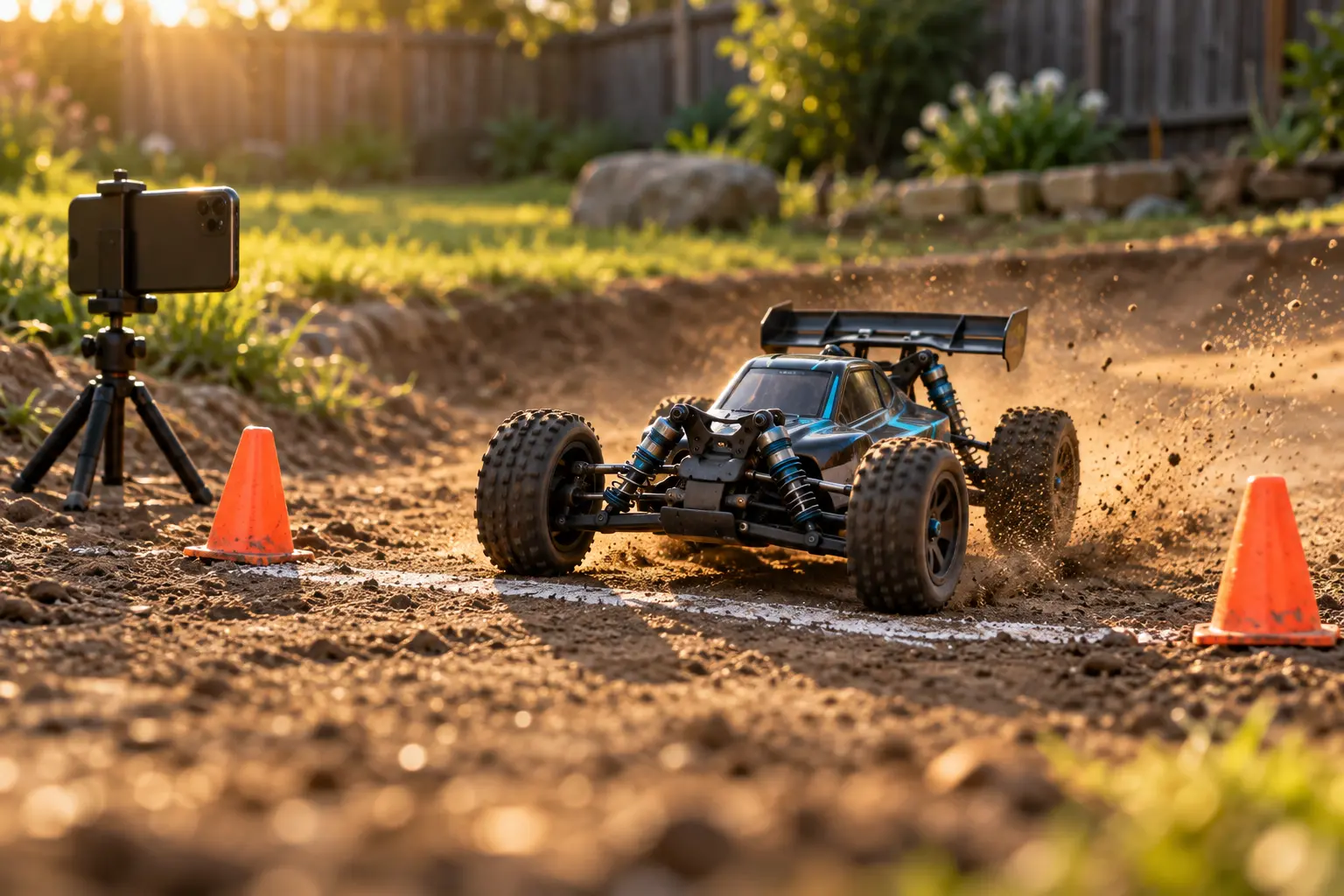
Accuracy testing · new results
Our latest test compared 20 lap intervals with a nominal 240 FPS video reference: 0.013017 s mean absolute difference and 0.045167 s largest difference.
The app records an earlier crossing timestamp before displaying the result. Screen feedback can arrive later while the recorded lap remains close to the reference. These are preliminary results from one session, not a guaranteed error limit.
See both tests, every lap & the evidenceOur commitment
Basic lap timing will always be free, with no account or login required. A camera-equipped phone and a stable mount are all you need to start measuring your laps at no cost.
Every feature available today is free. Running costs for all current features are currently covered, so you can use the app without paying. Sign-in is optional and only needed for account-based features such as cloud backup and sharing.
Future advanced features that add storage or operating costs may be offered as paid options. That will never change the free, no-login access to basic lap timing.
From phone to finish line
A phone, a stable mount and your RC car. That’s where your next practice session begins.
Mount your phone beside the track. Open the camera and draw the finish line on the preview.
Calibrate with the crossing area clear. Test a few passes, then choose a lap target, Free Practice or Ghost.
The camera detects crossings. Hear your lap updates, finish your session and review your progress.
Software demonstration
Watch how Backyard Lap Timer captures each pass and turns your runs into measurable progress.
Prefer YouTube? Watch the video there.
Inside Backyard Lap Timer
Follow your pace on the track, then compare runs and find where you can improve.
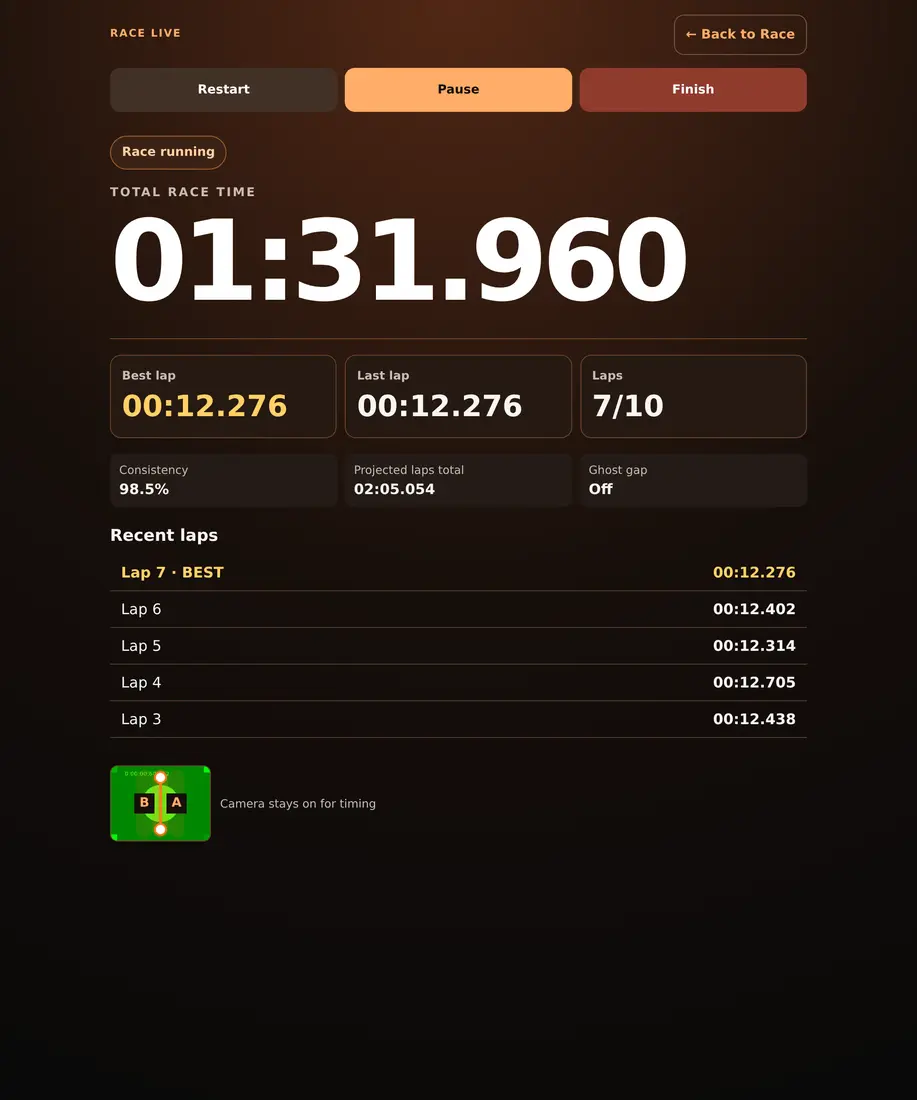
A dedicated race view with your total, best and recent laps. Spoken alerts help you keep your eyes on the car.
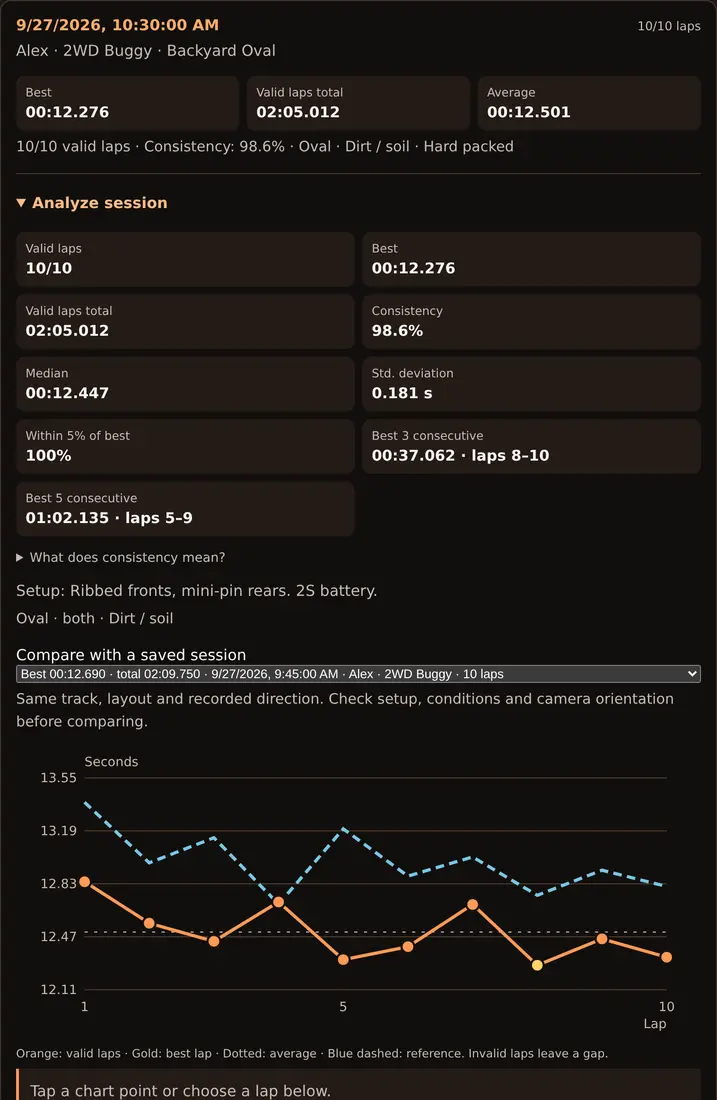
Compare sessions, explore lap charts, review a lap and export your results.
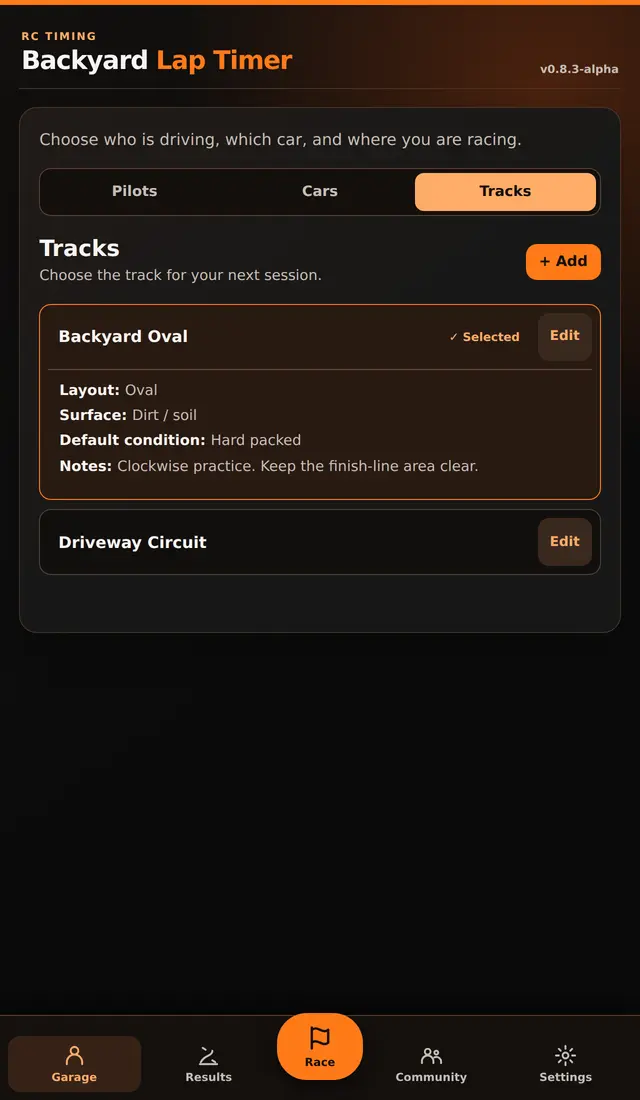
Keep drivers, cars and tracks organized, including the surface and conditions that make each run different.
Real application screens with demo profiles and lap times. Camera previews use a test feed. Tap a screen to explore it.
Practice with a purpose
Set a lap target, keep going in Free Practice, or race a compatible saved reference in Ghost mode with spoken ahead-or-behind updates.
With an optional account, invite drivers to a shared track and compare best results for the same layout and conditions.
Use one phone, or pair a Sensor with a second device on the same Wi-Fi to view the camera and control your session remotely.
Ready when you are
Install from your browser. Open the timer directly next time, without this introduction.

You can also use your browser’s install menu below.
Chrome
Chrome / supported browsers
Safari
Menu wording and availability vary by browser version.
Prefer the browser? Open the app now. Installation is optional. Load the timer once while online before practicing offline; cloud features need a connection.
Before your first lap
Yes. Every feature available today is free, with its running costs covered. Basic backyard lap timing will always be free, with no login required. Future advanced features with additional storage or operating costs may be paid, but basic timing will remain free.
In our latest preliminary test, 20 lap intervals differed from a nominal 240 FPS video reference by 0.013017 s on average in absolute terms; the largest difference was 0.045167 s. Screen feedback delay is measured separately. Results vary with setup and device. See both test sessions, all lap comparisons and limitations.
Not yet. We’re working toward future App Store and Google Play releases. In the meantime, we want you to start enjoying the app for free right now through your internet browser. You can also install it from the browser using the instructions above, without waiting for a store release.
No account is required for local timing. Use a camera-equipped phone and a stable mount; no transponder or additional timing sensor is needed. Sign in when you want cloud profile backup and shared-track records.
Plan for one car at a time. Camera crossing detection does not identify individual cars. Stable framing, lighting and calibration help the detector work well. Camera timing is experimental; displayed decimal places do not guarantee measurement accuracy at that level.
Full session history stays in your browser on the device that records it. Optional account features sync profiles and best-result summaries. Use the app’s JSON backup tool to keep a copy of your local history.
Help improve the app
Have an idea or something not working? Tell us about it by email.
Report a problem · Suggest an improvement
Email: [email protected]
Your email app opens a draft for you to review and send. You can attach screenshots there.
Your next personal best starts here
Start for free, without a login. Install whenever you’re ready.